| Portal address | 10.0.0.1 (default; owners can change it)Source: AdoPiSoft setup guide |
|---|---|
| Owner admin page | 10.0.0.1/adminSource: AdoPiSoft activation guide |
| Pause | Pause button beside your session, with the pauses left, e.g. (10x)Source: AdoPiSoft default portal theme |
| Resume | Connect, or automatic on rejoining if the owner set itSource: AdoPiSoft theme and session settings guide |
| Pause limits | Set by the owner; the example default is 10 pauses for 1 to 2 hoursSource: AdoPiSoft session settings guide |
| Vouchers | Voucher Code box and Activate; pausable only if the owner ticked Allow PauseSource: AdoPiSoft vouchers guide |
Ado Piso WiFi pause time: how to pause on AdoPiSoft
To pause Ado Piso WiFi time, open the portal at 10.0.0.1 while connected and tap Pause beside your session. Your time stops until you tap Connect, and each Ado Piso WiFi pause uses one from your count.
- Join the vendo's WiFi and open
http://10.0.0.1. - Find your session in the Available Sessions list.
- Tap Pause. The number beside it, such as (10x), shows the pauses you have left.
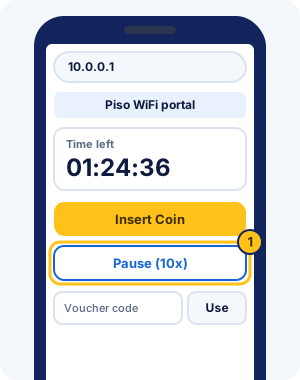
Button names come from AdoPiSoft's default portal theme, which owners can replace, so your vendo may look different.
Resume with Connect
To resume on AdoPiSoft, open the portal and tap Connect on your paused session. Owners can also set sessions to resume by themselves when your phone rejoins the WiFi.
- Rejoin the vendo's WiFi.
- Open
http://10.0.0.1. - Tap Connect on your session.
The same setting can pause your time automatically when you leave or stop using the WiFi. You can't see it from the portal, so tap Pause yourself before you walk away.
Ado Piso WiFi login and sign in
Ado Piso WiFi login needs no account to buy time: open http://10.0.0.1, insert coins or enter a voucher, and your session starts. Signing in only matters for the optional extras.
- Customer accounts: some owners turn them on so you can top up a wallet and buy time from More > My Account.
- Passcode: the default portal can give you a passcode that links your sessions if your phone's address changes.
- Owner sign-in: the admin login at 10.0.0.1/admin is for the vendo owner only.
Check your time and pauses left
AdoPiSoft lists your sessions in an Available Sessions table with the time, the expiry date and the Pause button with its count. If the portal says it couldn't sync your time, reload the page.
Switching phones? The default portal can give you a passcode that links your sessions across devices, so keep a copy of it if the owner offers one.
AdoPiSoft vouchers, GCash and wallets
AdoPiSoft vouchers go into the Voucher Code box on the portal; tap Activate to add the time. Owners can sell time, data, time with a data cap, subscription or eload vouchers, and can hide the voucher box altogether.
- Voucher time runs continuously unless the owner ticked Allow Pause for it.
- Owners can add a GCash button to the portal.
- Customer accounts let you top up a wallet and buy time from More > My Account.
Codes come only from the owner; the voucher code guide explains why shared codes fail.
AdoPiSoft pause limits and expiry
AdoPiSoft owners set two rules that affect pausing: how many pauses each session gets, and when a session expires.
- Pause limit: AdoPiSoft's example setting gives 10 pauses for 1 to 2 hours of time.
- Expiry: in AdoPiSoft's example, 2 hours of time expires 3 hours after the session starts, paused or not.
Buying a long session? Ask the owner how long it stays valid, because paused time can still expire.
Common AdoPiSoft problems
- No Pause button: the owner hasn't allowed pausing for that session or voucher. The default portal hides the button in that case.
- Pause greyed out: the count in brackets ran out.
- 10.0.0.1 won't open: check the WiFi and mobile data first, then ask whether the owner changed the address. Our AdoPiSoft portal not opening fixes cover the rest.
- Time missing after reconnecting: a new phone address can look like a new device; a passcode, if the owner offers one, links your sessions.
What AdoPiSoft is
AdoPiSoft, formerly Ado Piso WiFi, is vendo management software made by Flarego Technologies Corp., Danao City, Cebu, Philippines. Owners run it on a small board or PC that connects the coin slot to one or more WiFi access points.
Hardware AdoPiSoft lists:
- Raspberry Pi 3/4
- Orange Pi One, PC, One Plus, Zero
- Asus Tinker Board
- NanoPi R2S
- Ubuntu Server (x64)
- Android TV box
- access points such as Comfast, TP-Link and Tenda
| Licence | Price | Users |
|---|---|---|
| Lite | US$16.99 | up to 50 connected wifi users (excluding inactive users) |
| Business | US$65.99, then $10 a year | unlimited wifi users |
Validity: Perpetual on AdoPiSoft v5; yearly on v6 (first year included). AdoPiSoft also lists a free Community Edition in beta.
AdoPiSoft owner guide: admin settings
The AdoPiSoft admin page is at 10.0.0.1/admin, according to AdoPiSoft's own setup guide. Each part below follows AdoPiSoft's official guides, using the menu names they use.
Signing in with the default login
AdoPiSoft's guide gives this default login for the admin dashboard. Change both the username and password under Account Details in My Profile straight after your first sign-in.
| System | Where | Username | Password |
|---|---|---|---|
| AdoPiSoft | 10.0.0.1/admin | admin | adminSource: adopisoft.com. Change both under Account Details after your first login. |
The admin login safety tips cover keeping the new password safe.
Dashboard and sales records
The Dashboard is the first screen after sign-in. It shows sales by month, week or day, online customers, connected users without a session, and whether the internet is up.
Sales Inventory keeps every sale. You can filter it by day, week, month, year or date, by sales type (coin, voucher, eload, cash or subscription) and by payment portal.
Setting WiFi rates and free trials
Under Wifi Rates, you choose time rates, data rates, or time with a data cap. Owners choose time rates, data rates, or time with a data cap. AdoPiSoft's Philippine example: PHP 1 = 5 minutes or 50MB, PHP 5 = 30 minutes or 300MB, PHP 10 = 1 hour or 600MB. You can edit these or add more coin amounts.
The same screen can turn on a free trial of time or data, with its own speed. It also sets how long the portal waits for coins after Insert Coin is tapped.
Session and pause settings
Session Settings decide how pausing works on your vendo. Each choice shows on the customer's portal, so set them before you open.
- Pause limits and session expiry, set for ranges of time or data bought.
- Automatic pause when a device goes inactive or leaves the WiFi, and automatic resume when it returns.
- Online Status Checking, which pauses every session while the internet is down.
- Session cookies, which keep a session working when a device moves between your access points.
Creating vouchers
Vouchers can be time, data, time with a data cap, subscription or eload. For each batch you set the speed, an expiry, Allow Pause, the maximum users per voucher and the price.
You also choose how codes look: their characters, letter case, a prefix and their length. A prefix helps you tell batches apart. Expiry is added on top of the time, so a 7-day voucher with 1 day of expiry expires after 8 days.
Customer devices, blocked phones and adding time
Wifi Devices lists every connected device. From there you can add time or data to a session, allow or block pausing, or start, pause and delete a session.
Phones that tap Insert Coin too often without paying get blocked. You set the number of tries and the suspension time under Wifi Rates, and Unblock frees a phone early.
Speed limits
Bandwidth Limiter sets a download and upload speed for each user, entered in kilobits per second. Alternatively, all users can share one global limit for the machine.
Extending WiFi range with access points
AdoPiSoft extends a vendo's signal with extra access points, connected through a VLAN or a USB-to-LAN setup. Its VLAN guide lists the TP-Link EAP110 as tested. The WiFi range section of the vendo guide covers placement.
Backups and software updates
Back up before you update the software, reflash or replace the SD card. A backup can include the database (users, sessions, vouchers and sales) and your captive portal design.
Software Updates shows your current version. Check For Updates lists newer versions with their notes, and you install the one you choose.
Managing from your phone
AdoPiSoft links to its own AdoPiSoft Manager App on Google Play for owners. It's for watching and running the vendo, not for customers' pausing.
Which Piso WiFi system is your vendo on?
Open the portal and look for these clues:
- The browser bar shows 10.5.50.1, or the page says JuanFi: JuanFi pause steps
- The browser bar shows 10.5.50.1 and the page does not say JuanFi: MikroTik hotspot guide
- The Pause button shows a count in brackets, such as (10x): AdoPiSoft pause steps
- The "Powered by" line at the bottom says LPB: LPB pause and resume steps
- The "Powered by" line says PisoFi: PisoFi guide
- None of these, or not sure: General pause steps
Ado Piso WiFi FAQ
What is Ado Piso WiFi?
Ado Piso WiFi is the old name of AdoPiSoft, vendo software made by Flarego Technologies Corp., Danao City, Cebu, Philippines. Owners run it on boards such as a Raspberry Pi or Orange Pi, and customers use its portal at 10.0.0.1.
What does (10x) beside the Pause button mean?
It's the number of pauses left for that session. The owner sets the limit; AdoPiSoft's own example allows 10 pauses for 1 to 2 hours of time.
Why can't I pause my AdoPiSoft voucher time?
Voucher time keeps running once started unless the owner ticked Allow Pause for that voucher. Ask the owner before you buy if you need to pause.
What is the AdoPiSoft admin password?
AdoPiSoft's guide gives the default as username admin and password admin, at 10.0.0.1/admin. Change both under Account Details in My Profile after your first login.
What is the Ado Piso WiFi portal address?
The Ado Piso WiFi 10.0.0.1 portal is the default, according to AdoPiSoft's own setup guide. Owners can change it, so if it doesn't open, use the sign-in screen your phone shows.
How do I set up Ado Piso WiFi?
Owners install AdoPiSoft on a supported board, connect the coin slot and access points, then activate the licence from the admin page at 10.0.0.1/admin. AdoPiSoft's own guides walk through each step.
What happens when the AdoPiSoft vendo loses internet?
With Online Status Checking on, customers can't insert coins while the vendo is offline. Every active session pauses by itself until the internet returns, so nobody loses time.
How many users can connect to an AdoPiSoft vendo?
The Lite licence covers up to 50 connected users, and Business has no user cap. The WiFi Users Limit setting lets owners set a lower cap of their own.
Do AdoPiSoft sessions survive a power cut?
They can. A session setting lets them carry on by themselves after the vendo restarts, so customers don't need to start them again. Ask the owner whether it's on.
Is AdoPiSoft free?
The Lite and Business licences are paid. AdoPiSoft also lists a free Community Edition, in beta, built on OpenWRT.